DMS365 – Streamline, Simplify, and Scale Your Business
DMS365DMS365 is a powerful digital management solution designed to integrate people, processes, and data into a single, unified platform. It helps businesses optimize workflows, improve collaboration, and make data-driven decisions, ensuring faster growth and consistent delivery of better products and services
100+
Deliver better products & services.
About DISTiDISTi 365 Cloud Solution is designed and developed on Microsoft Dynamics 365 Business Central
specific to wholesale and distribution Industry.
Deliver Better Products & Services, Every Time.
Document Management SystemDMS365 empowers businesses to streamline operations, enhance collaboration, and deliver superior products and services with efficiency and precision. By integrating data, processes, and people into a unified digital ecosystem, DMS365 ensures continuous improvement, smarter decision-making, and long-term value creation.
- End-to-End Process Optimization – Simplify complex workflows and reduce operational bottlenecks
- Data-Driven Insights – Leverage real-time analytics for smarter, faster decisions
- Seamless Collaboration – Connect teams, departments, and stakeholders on a single platform
- Customer-Centric Approach – Deliver tailored solutions that meet and exceed client expectations
- Scalable & Flexible – Adapt quickly to evolving business needs and market demands
- Enhanced Efficiency – Improve productivity while maintaining quality and compliance
DMS Configuration
Document Management System1. Pre-requisites
An Azure AD the App registered first using the Microsoft Entra App Registration process
Obtain Client ID, and Client Secret of the Azure AD App.
Configure the app to have write access to the SharePoint site
2. Required Details for the SharePoint Authentication
- Authentication Type: OAuth 2.0
- Grant Type: Client Credentials
- Client ID: ClientID@TenantID
- Client Secret: Client secret generated for the app
- Access Token URL: https://accounts.accesscontrol.windows.net/<TenantID>/tokens/OAuth/2
- Resource: 00000003-0000-0ff1-ce00-000000000000/<sitename>. sharepoint.com@TenantID
3. Configure SharePoint Authentication on DMS Screen
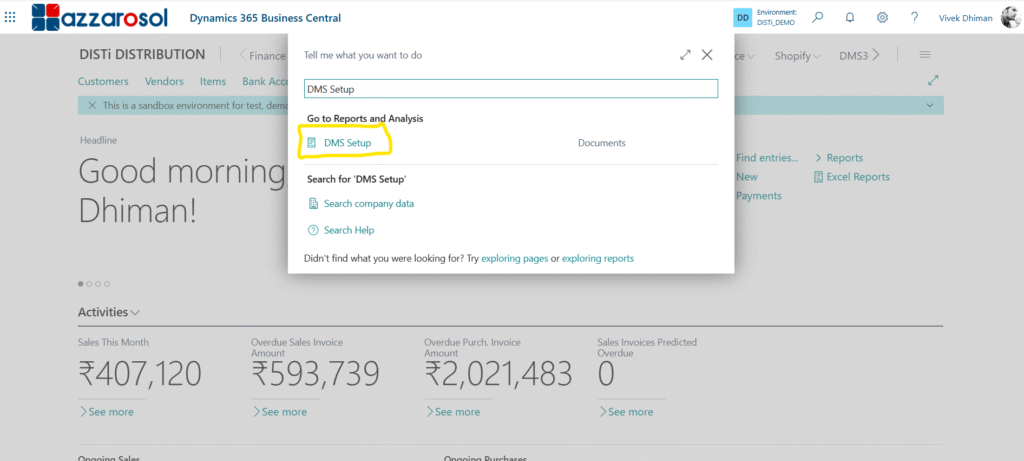
Open Business Central and search DMS setup in the search bar
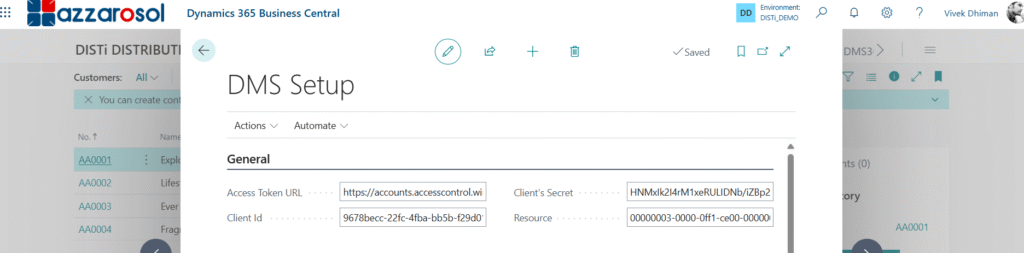
Now we will configure the required authentication details on the DMS screen under the General Tab
4. Required Details for the File Uploading on the SharePoint
Upload URL: https://test.sharepoint.com/sites/<sitename> /_api/Web/GetFolderByServerRelativeUrl
Library Path: (‘/sites/<sitename> /<foldername>’)
This path will target your SharePoint folder where you want to upload the files:
http://test.sharepoint.com/sites/<sitename>/_api/web/GetFolderByServerRelativeUrl(‘/sites/<sitename> /<foldername>’)/Files/add(url=’a.txt’,overwrite=true)
5. Set the path to uploading the file on SharePoint
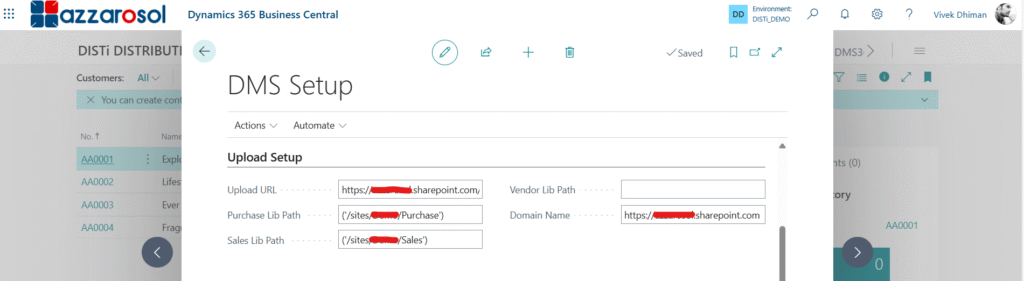
Now this time to configure the required file uploading path on the DMS screen under the Upload Setup Tab
6. Upload file on SharePoint from Business Central
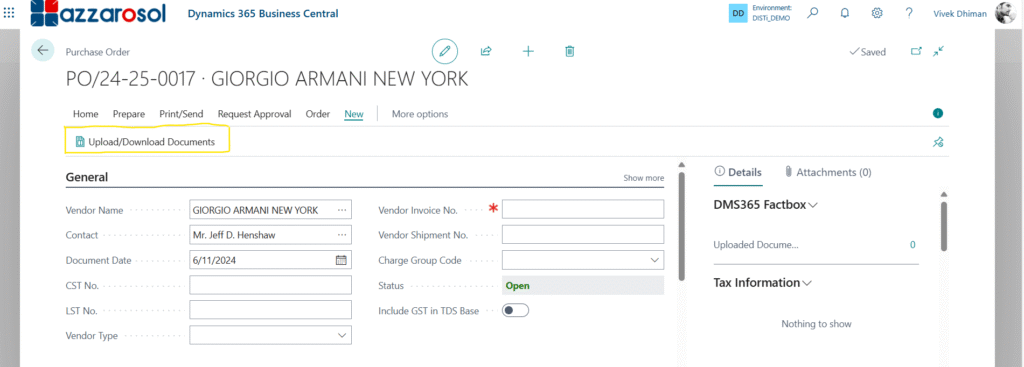
- Create a purchase order.
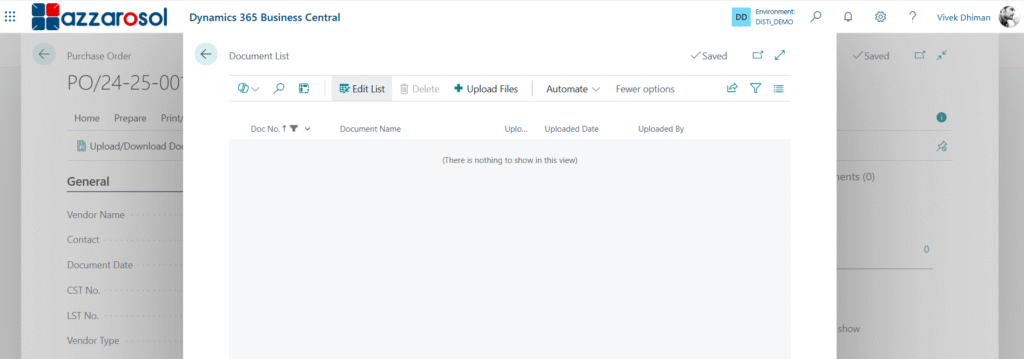
Go to Related>Upload/Download Documents as shown below
You will get below screen
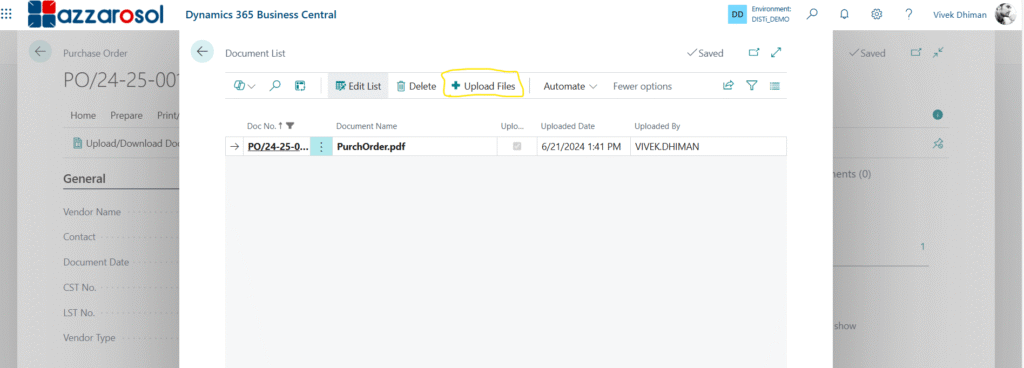
Click on “Upload Files” and choose the file you want to upload. After upload, we can see the attached file
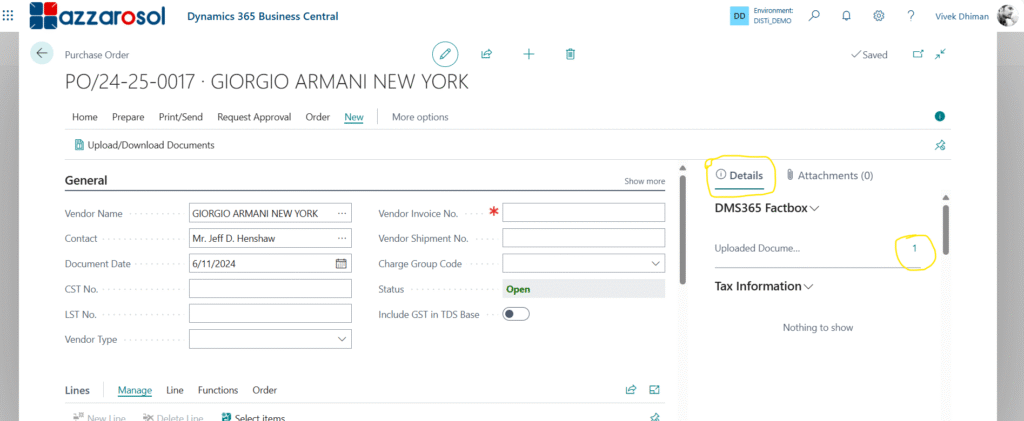
We can see the attachment below. We have attached a file so we can click “1”
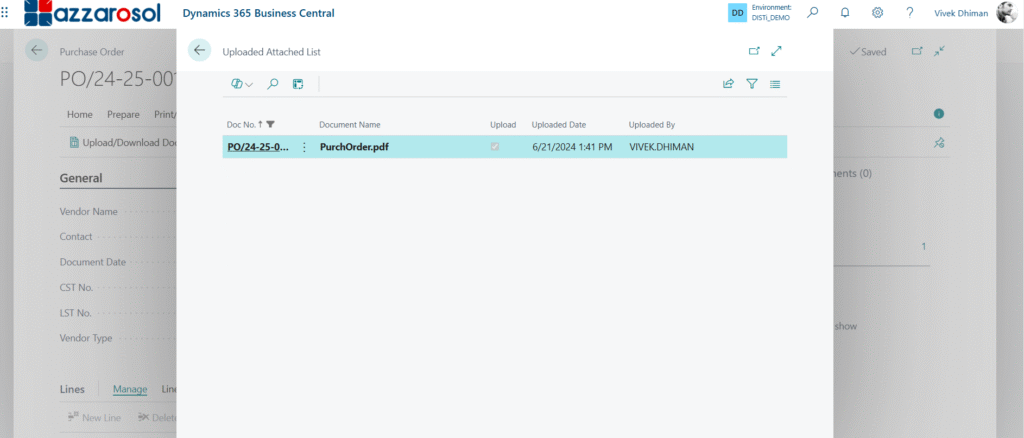
We can see the attachment below now which we have uploaded
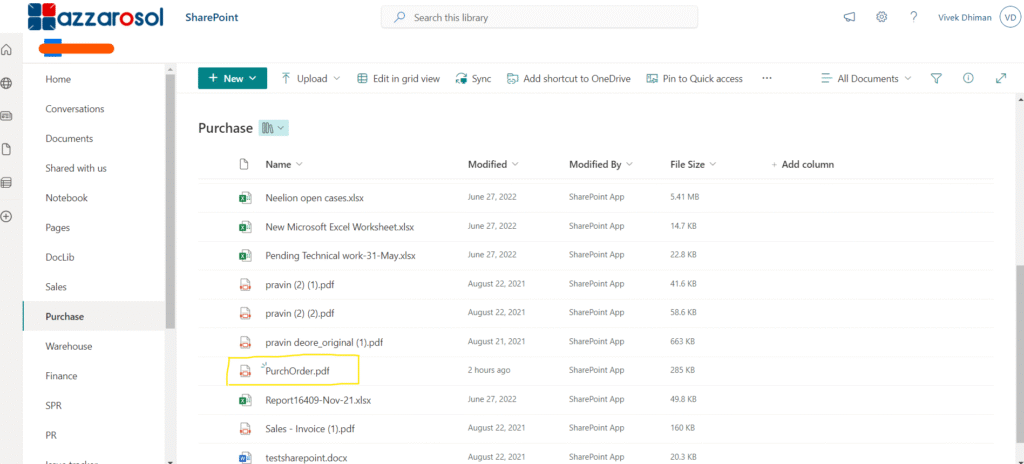
7. Check whether the File on SharePoint is uploaded or not
Now in SharePoint we can see the file have been uploaded
Your Value
DMS365 helps your business unlock efficiency, drive growth, and deliver greater value through smarter processes and seamless digital integration
- Streamlined Operations
- Data-Driven Decisions
- Customer-Centric Solutions
- Scalability
- Seamless Collaboration
- Cost Efficiency
- Innovation Enablement