
Budget Control Setup Process
Budget365Budget control is a system of controlling costs which includes the preparation of budgets, coordinating the departments and establishing responsibilities, comparing actual performance with the budgeted and acting upon results to achieve maximum profitability.
Budget control refers to the process of planning, controlling, and monitoring the organization’s revenue and expenses to ensure that they align with the budget.
100+
Deliver better products & services.
About DISTiDISTi 365 Cloud Solution is designed and developed on Microsoft Dynamics 365 Business Central
specific to wholesale and distribution Industry.
Deliver Better Products & Services with Smarter Budgeting
Budget Control Setup ProcessBudget365 empowers organizations to plan, monitor, and optimize their financial resources effectively. By aligning budgets with strategic goals, it helps businesses enhance efficiency, control costs, and deliver greater value through better products and services.
- Smart Budget Planning – Create accurate, flexible budgets aligned with business objectives
- Real-Time Tracking – Monitor expenses and revenues instantly for better control
- Cost Optimization – Identify savings opportunities without compromising quality
- Seamless Integration – Connect budgeting with ERP and business operations
- Data-Driven Insights – Generate actionable reports for informed financial decisions
- Improved Accountability – Increase transparency across departments
- Scalable Solution – Adapt easily as your organization grows
Budget Control process
Document Management System1. Budget Control process
1.1 Budget control setup configuration
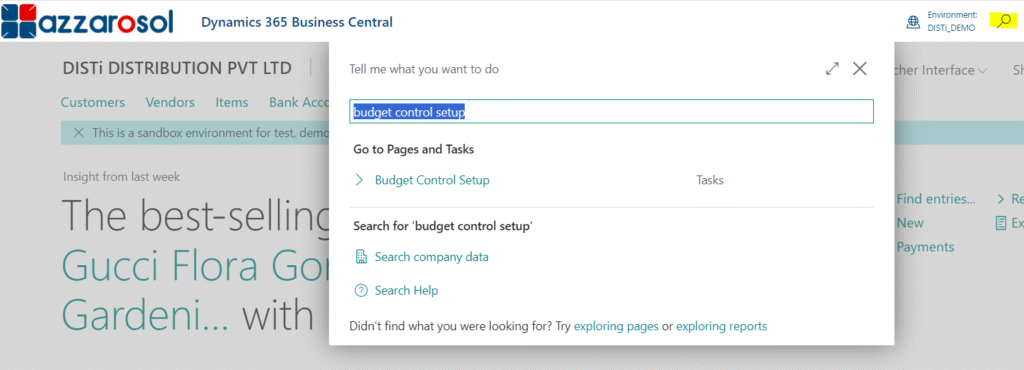
Budget Control Setup (Global Search)
Choose the global search Budget control setup, and then choose the Budget control setup option. (Refer to Image 1)
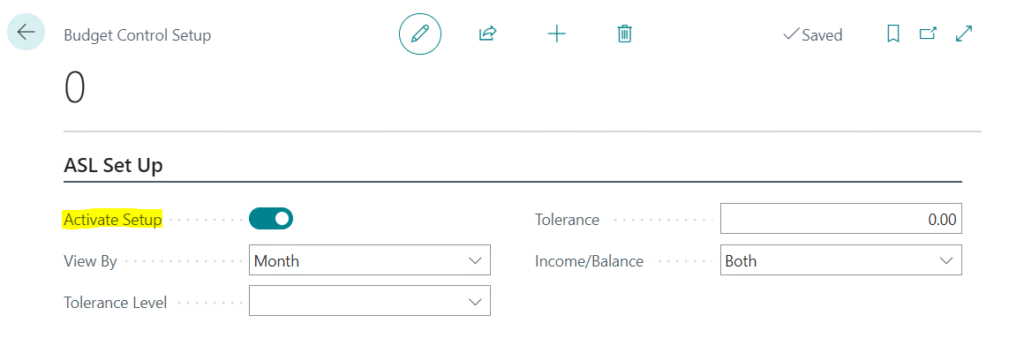
- Activate Setup: If G/L budget setup is enabled then the System will allow you to proceed with the orders according to the budget allocated. (Refer to Image 1.1)
Budget Control Setup
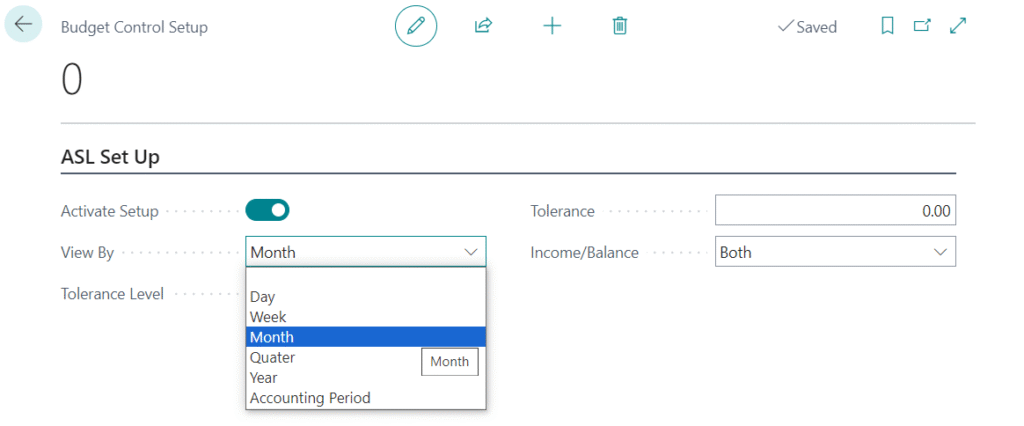
- Select the view by option according to the budget control configuration requirement. (Refer to Image 1.2)
2. G/L budget
- After the Budget control setup, the user needs to add the G/L Budget.
2.1 To configure the G/L budget
G/L Budgets
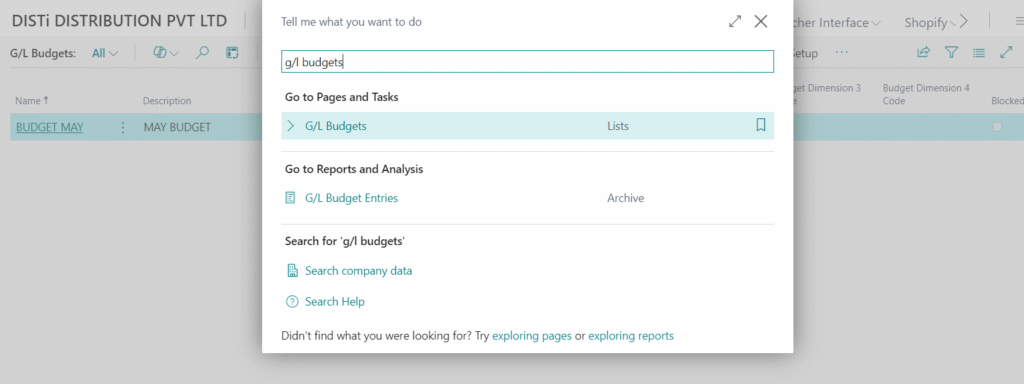
Choose the global search
icon, type G/L budgets, and then choose the G/L Budgets option.
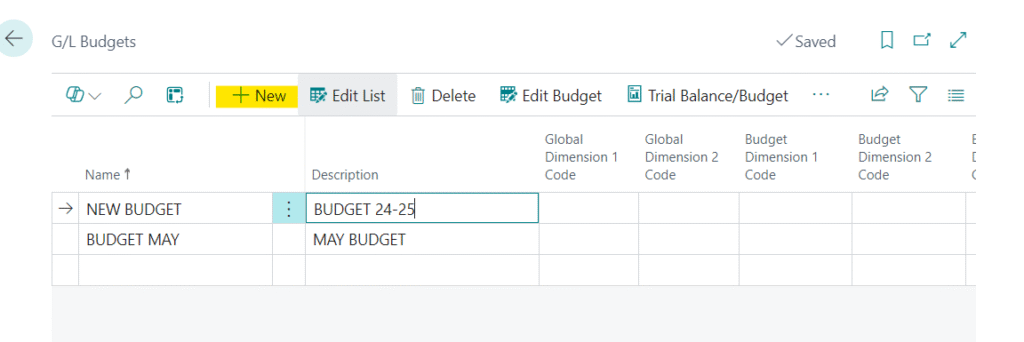
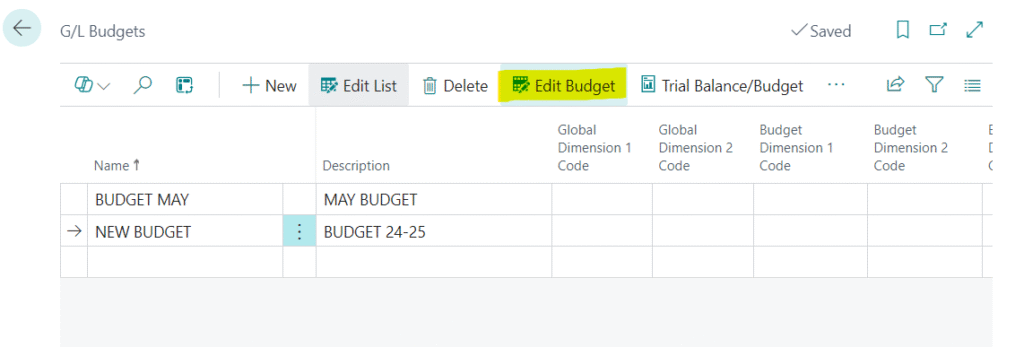
- G/L Budgets list page will appear and create a new budget by clicking on the New action Button. (Refer to Image 3)
G/L Budgets
G/L Budgets
- Click on Edit Budget option for adding the amount to the G/L accounts.
2.1.1 Filter
G/L Budgets
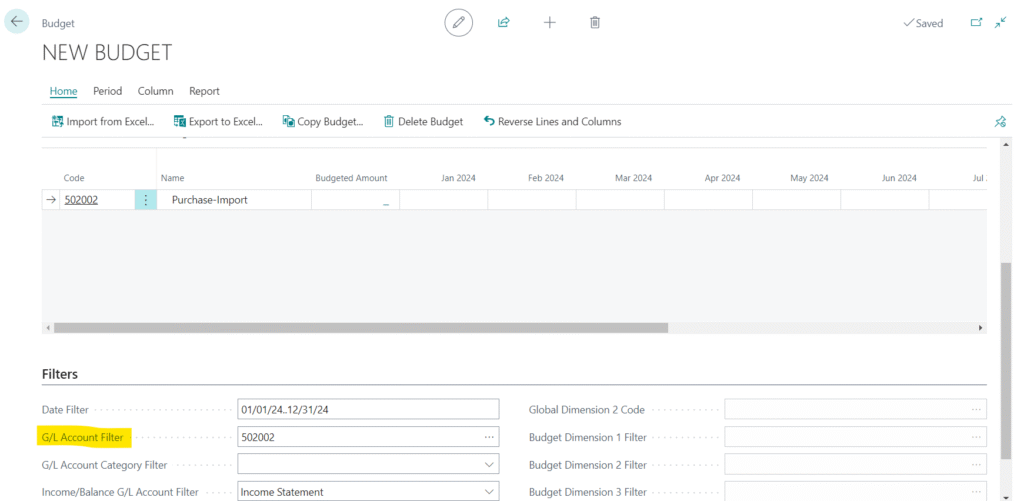
To specify the budget amount users can use the G/L Account Filter field. Type the G/L account in the G/L Account Filter field and the filtered G/L account is showing in the Budget Matrix. (Refer to Image 4)
2.1.2 Specify the Budget amount in G/L Accounts
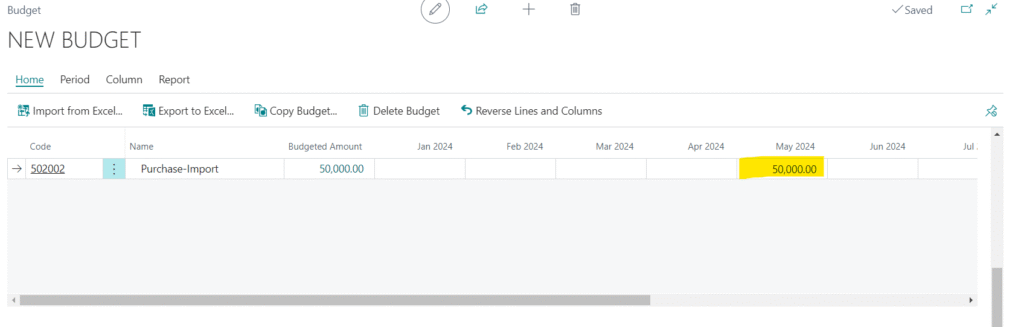
Now user can add the amount according to the month for the G/L account as highlighted in the Image below
G/L Budgets
3. Add G/L Budget for Inventory
Item Card
- Users can also add the G/L (General Ledger) budget for the inventory.
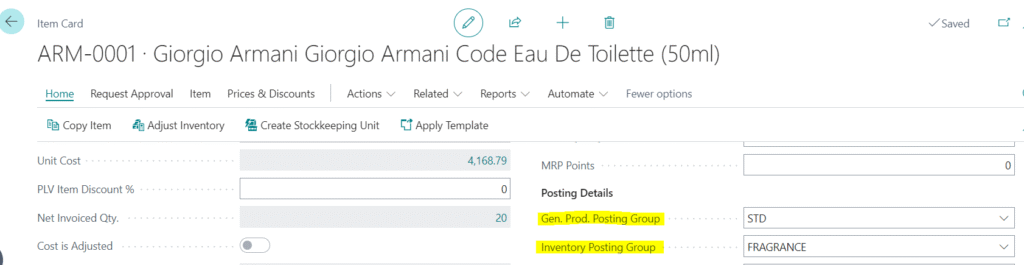
- To check a G/L (General Ledger) account where the user wants to add a budget. For example: STD and FRAGRANCE are mentioned in the Gen. Prod. Posting Group and Inventory Posting Group fields for an Item ARM-0001 as highlighted in the Image below
- Choose the global search
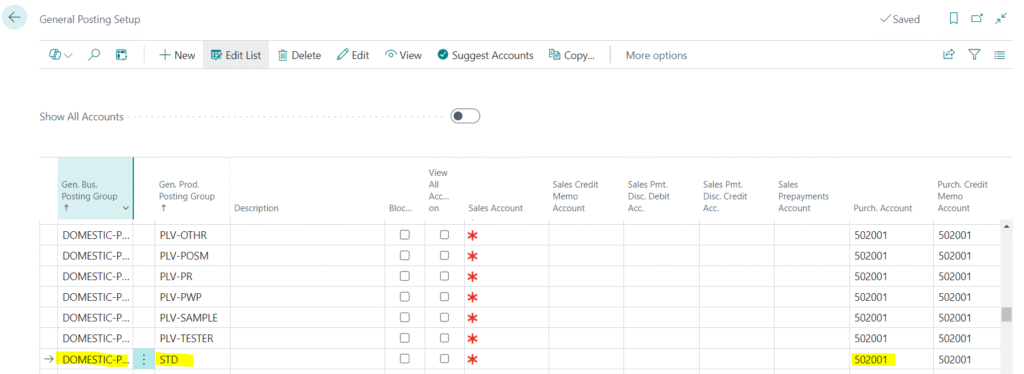
icon, type General Posting Setup, and then choose the General Posting Setup option. - The General Posting Setup page will appear. (Refer to Image 7)
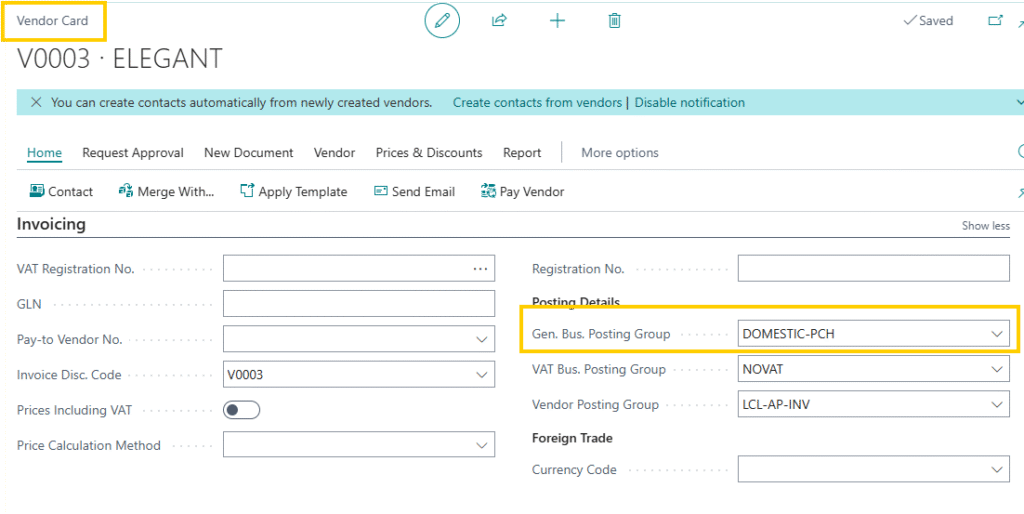
- Check the combination of Gen. Bus. Posting Group (mentioned the vendor card from whom users are purchasing items Refer to Image 8) and Gen. Prod. Posting Group and G/L account are mentioned in the Purchase Account column as highlighted in the image below
General Posting Setup
Vendor card
Now follow the same steps which are mentioned in Section 2
Your Value
Budget365 enables smarter financial control and resource allocation, helping businesses maximize efficiency, reduce costs, and achieve sustainable growth.
- Accurate Budgeting
- Real-Time Visibility
- Cost Control
- Better Decision-Making
- Departmental Accountability
- Seamless Integration
- Scalable & Flexible